Before you begin
- Multiview installed on a supported device
- At least one compatible source or stream
Platform notes
- Apple
- On iPhone and iPad, use touch controls. On Apple TV, use the remote to move focus and select sources or layouts.
- Android
- On phones and tablets, use touch controls. On Google TV, use the directional pad and select button on the remote.
1
Connect a source
Multiview plays content from sources you already use. It does not provide channels, playlists, subscriptions, or media.
- 1Open Multiview and choose the source you want to add.
- 2Follow the source-specific connection flow. Network devices should normally be on the same local network as Multiview.
- 3Wait for the source to finish loading its channels or library content.
2
Know the main areas
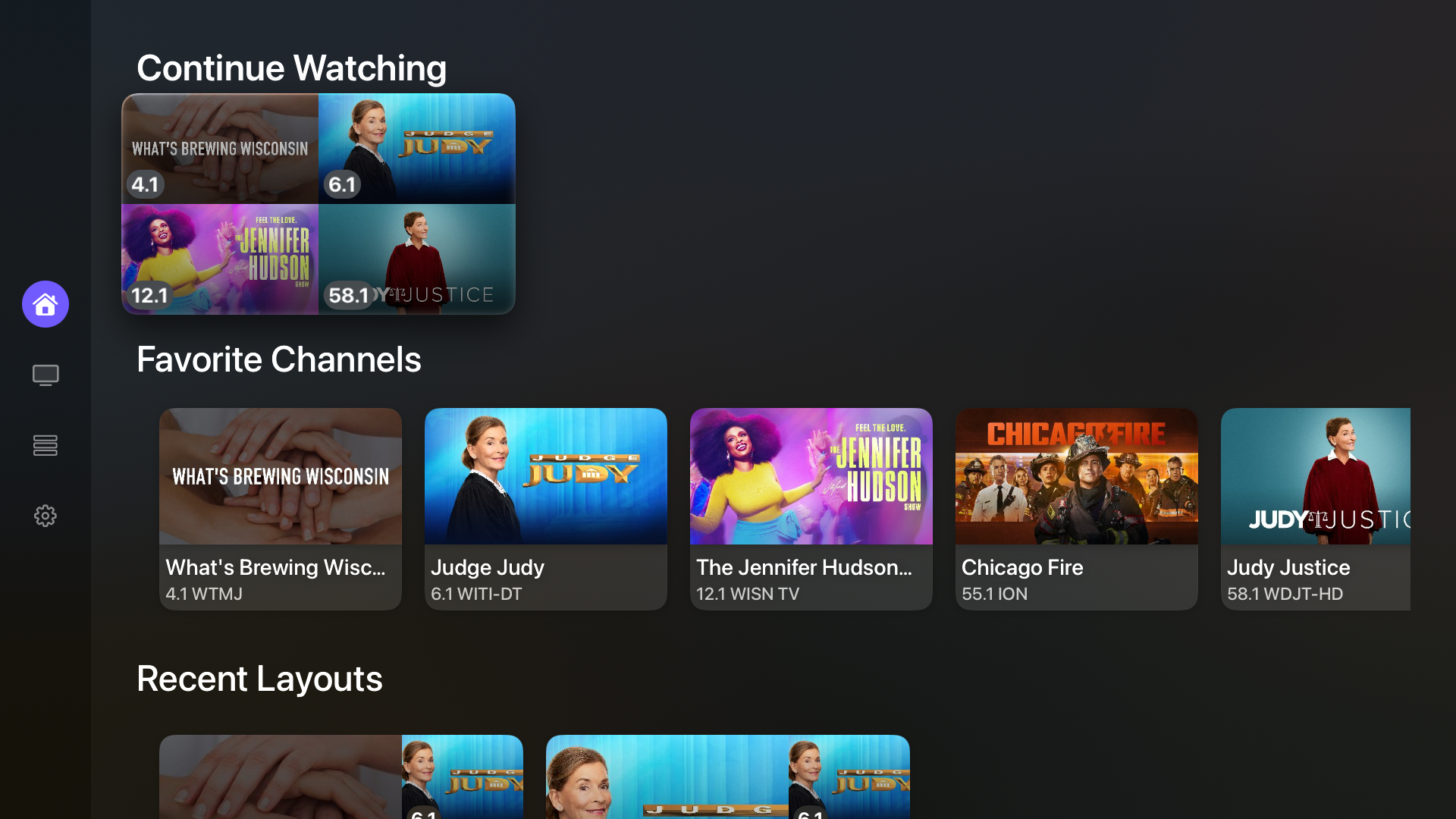
- 1Home gives you quick access to recent channels and viewing layouts.
- 2Guide brings live channels from your connected sources together.
- 3Library contains compatible recordings, movies, and shows from supported sources.
- 4Layouts is where you create, edit, and reopen saved viewing arrangements.
3
Start watching
- 1Choose a channel in Guide to watch it by itself, or open Home or Layouts to start a multiview.
- 2Choose an arrangement and assign up to four compatible streams.
- 3Select a visible stream to make it the active audio source.
Good to know: The first stream is available in the free experience. Multistream layouts require an active trial or Multiview Pro.