
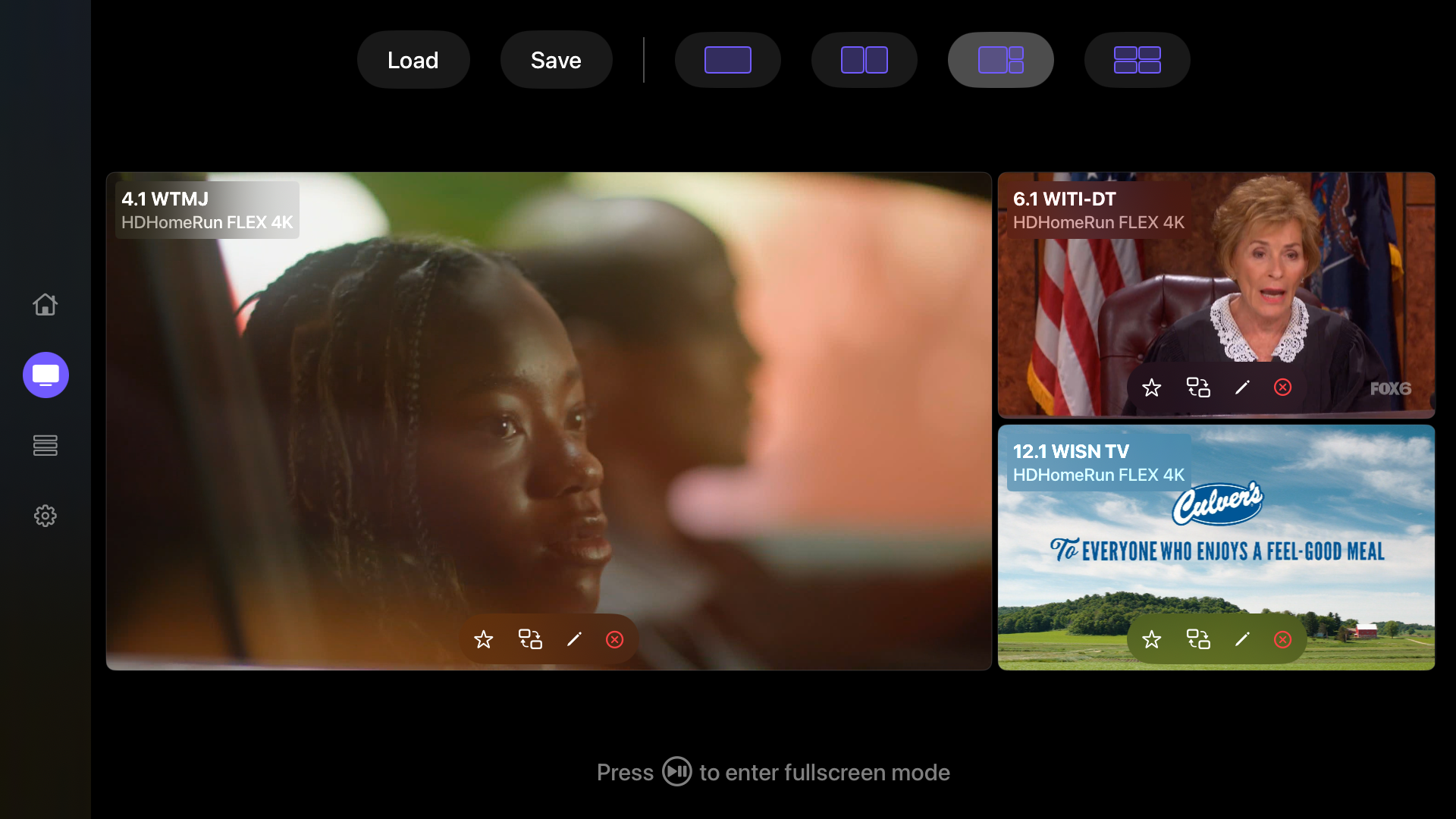
Platform notes
- TV devices
- Use the remote to move focus between layout positions and choose the stream assigned to each position.
- Mobile devices
- Tap a layout position to choose its stream, then tap a visible stream to make its audio active.
1
Build the view
- 1Open Home or Layouts and choose Create Layout, or select multiple channels from Guide.
- 2Choose a one-, two-, three-, or four-stream arrangement.
- 3Use Grid for equal areas or Featured to make one stream larger.
- 4Assign a channel, recording, Plex item, or live feed to each available position.
2
Control the player
- 1Select a stream to make its audio active. Only one stream plays audio at a time.
- 2Use the audio control again to mute when needed.
- 3Open a stream’s controls to replace it, swap its position, retry playback, or enter fullscreen.
- 4Use closed captions or camera controls when the selected stream supports them.
3
Keep the arrangement
Save a useful arrangement from Layouts so you can reopen it later. Multiview also keeps a Last Used layout for quick continuation.