
Platform notes
- Apple
- Follow these steps with touch controls on iPhone or iPad, or use focus and select controls with the Apple TV remote.
- Android
- Follow these steps with touch controls on a phone or tablet, or use the directional pad and select button on Google TV.
1
Choose what opens at launch
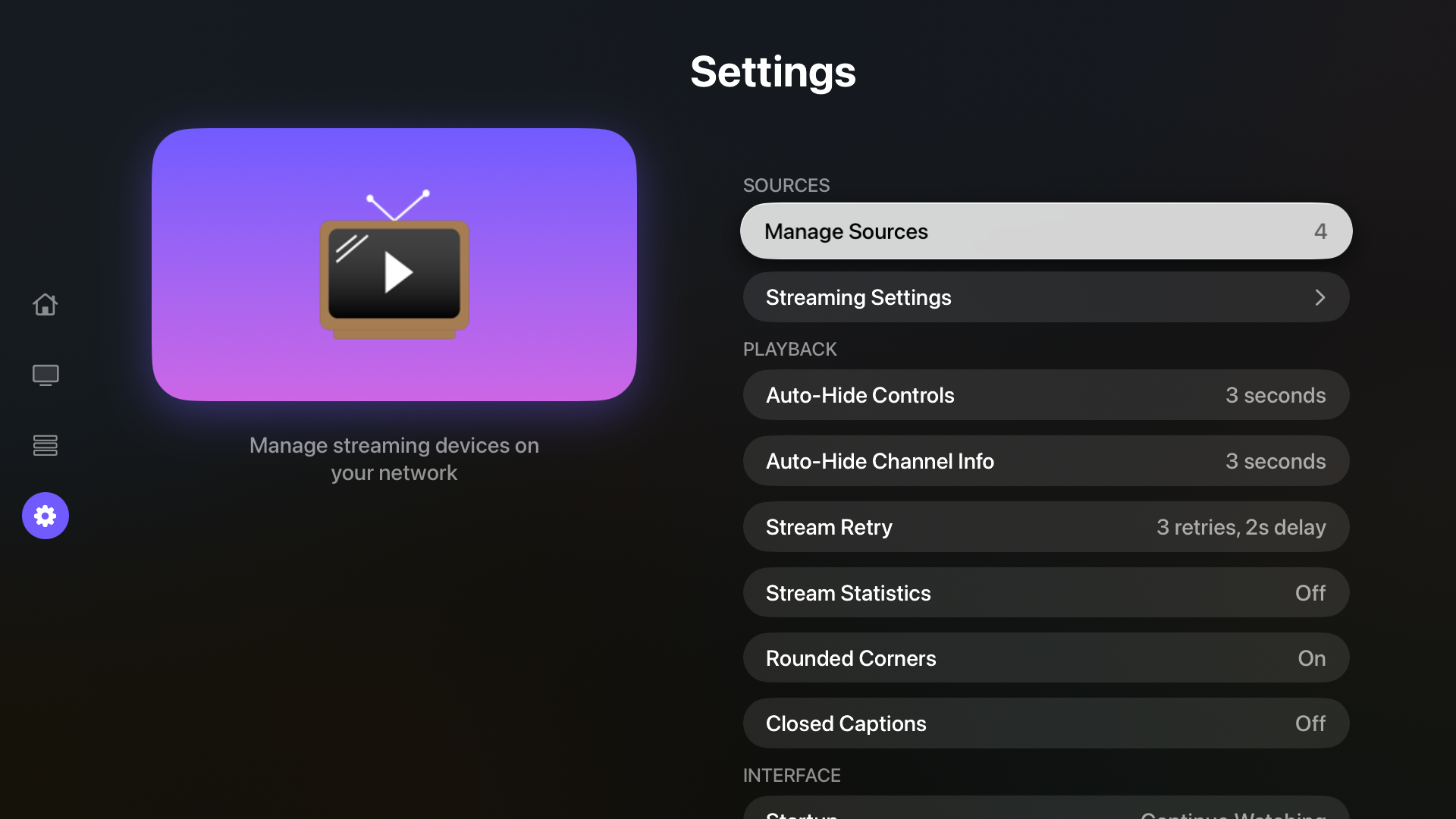
- 1Open Settings, then Startup.
- 2Choose Home, Guide, Library, or Continue Watching.
- 3On TV devices, choose Continue Watching Fullscreen if you want the last layout to reopen directly in fullscreen.
2
Adjust player overlays
- 1Set Auto-Hide Controls to choose how long fullscreen controls remain visible.
- 2Set Auto-Hide Channel Info separately for program and channel overlays.
- 3Choose Never when you want an overlay to remain visible.
- 4Turn Stream Statistics on when you need playback diagnostics.
3
Set retry and caption behavior
- 1Open Stream Retry and choose manual retry or an automatic retry count and delay.
- 2Open Closed Captions and choose Off, Muted Only, or Always.
- 3Remember that captions still depend on the selected stream providing a compatible caption track.
4
Control restored on-demand items
Choose Play to start restored library items immediately, or Load Paused to open them without playback starting. This affects on-demand content restored with a saved or Last Used layout.